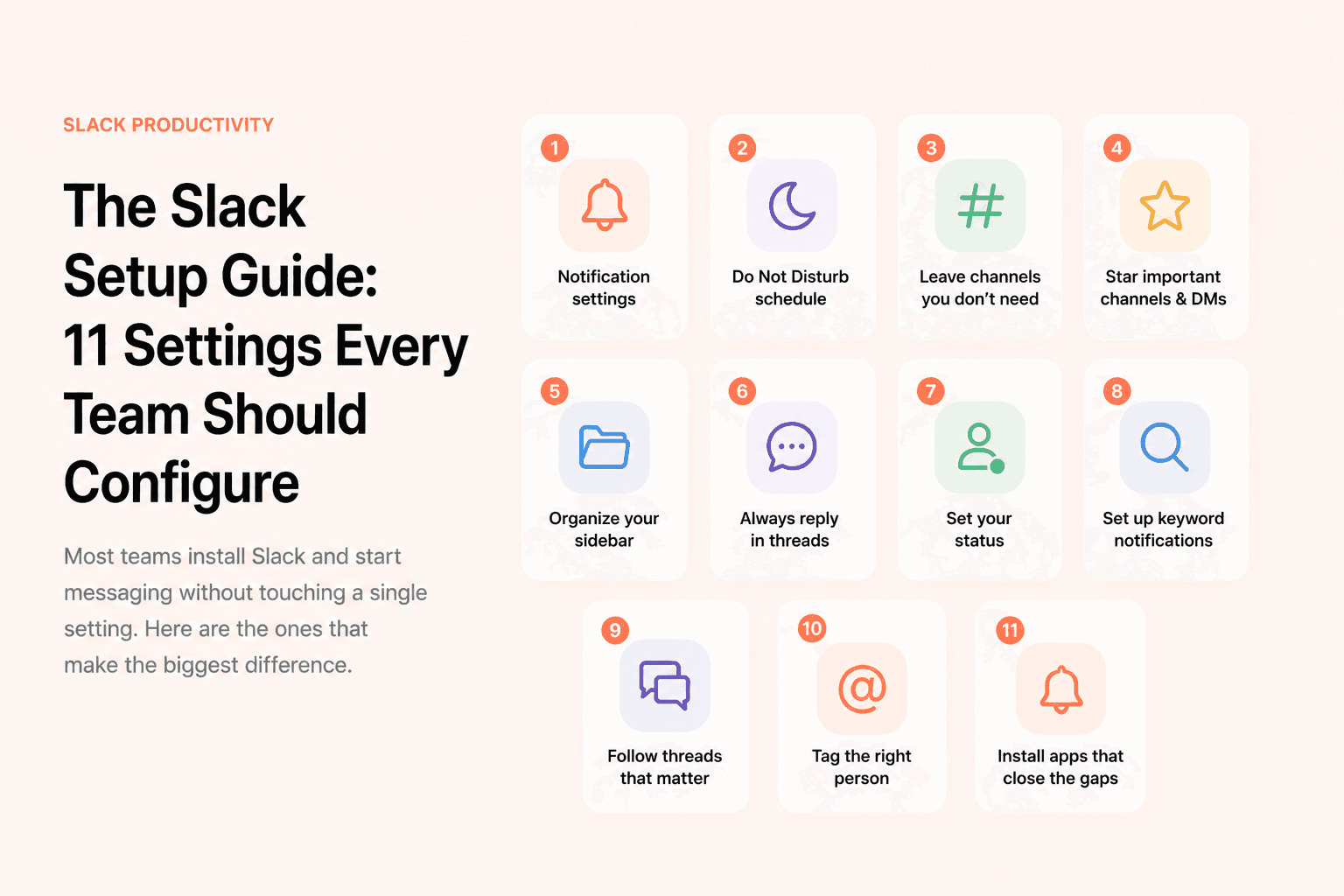
The Slack Setup Guide: 11 Settings Every Team Should Configure
Most teams install Slack and start messaging without touching a single setting. Here is what you should actually configure from day one — so Slack works for you instead of against you.
Most people join a Slack workspace, get added to a bunch of channels, and immediately start drowning in notifications. A few weeks in, Slack feels like a constant distraction rather than a tool that helps them work. The irony is that almost all of this is preventable — with about 20 minutes of setup.
The default Slack configuration is designed for the average user. Your team is not average. Here are the settings worth changing from day one.
1. Configure notification settings per channel
The single biggest quality-of-life improvement in Slack is setting different notification levels per channel. Most people apply one global setting and either get notified about everything (overwhelming) or almost nothing (dangerous for important channels).
Right-click any channel in your sidebar and select "Change notifications." For high-priority channels like your direct team, set it to "All new messages." For everything else, "Just @mentions" is usually right. For channels you joined out of curiosity but rarely need, set it to "Nothing" — you can still check in manually when you want to.
2. Set a Do Not Disturb schedule
Slack can automatically pause all notifications during specific hours. Go to Preferences → Notifications → Do Not Disturb and set the hours you are offline or need deep focus. This prevents evening and weekend pings without you having to manually toggle anything.
The key insight here: DND is not about being unavailable. It is about being intentional about when Slack gets your attention versus when you give it attention on your own terms.
3. Leave channels you do not need
Most people accumulate Slack channels the way email accumulates newsletters. Every project, every topic, every random discussion — and suddenly your sidebar has 40 channels. The cognitive load of seeing that many unread indicators adds up.
Do a one-time audit. For each channel you are in: are you actually learning something useful from it, or do you just feel like you should be there? Leave aggressively. You can always rejoin if something relevant comes up. The people who need you specifically will @ mention you.
4. Star your most important channels and DMs
After you have cleaned up your channel list, star the five to eight conversations you genuinely need to check every day. These appear at the top of your sidebar under a "Starred" section, so you always see them first regardless of recent activity.
This is especially useful for direct messages with people you communicate with regularly. Without starring, important DMs can scroll below active channels and get missed.
5. Organize your sidebar with sections
On paid Slack plans you can create custom sidebar sections — essentially folders for channels. Group your channels by project, team, or priority. A clean structure like "Daily" / "Projects" / "Company" makes it much easier to know at a glance where to focus.
On free plans, you can still sort by recent activity (Preferences → Sidebar → Sort channels by recent activity) so the channels you are actually using rise to the top automatically.
6. Always reply in threads
Threads are Slack's most underused feature. When a conversation develops inside a main channel — everyone jumping in, different points, follow-up questions — the channel becomes unreadable within minutes. Threads keep the context in one place and only notify the people involved in that specific conversation.
Make threads a team norm, not a personal preference. One person threading while everyone else replies inline creates more confusion than no threads at all. Add it to your team's Slack norms document if you have one.
7. Set your status to communicate availability
Slack shows your status to everyone on your workspace. Most people leave it blank, which tells their teammates nothing. A quick status — "In meetings until 3pm", "Focused work, slow to respond", "OOO until Monday" — eliminates a surprising amount of unnecessary pings and follow-ups.
You can also schedule your status to clear automatically at a specific time, so you never forget to update it after a meeting block ends.
8. Set up keyword notifications
Under Preferences → Notifications → My keywords, you can enter words that trigger a notification whenever they appear in any channel you are a member of. Useful keywords might include your product name, your team's codename, a client name, or anything you need to stay across even in channels you do not closely monitor.
9. Turn on notifications for threads that matter to you
By default, Slack only notifies you about a thread if you were the one who started it or if someone directly @mentions you in it. But there are often threads you want to follow even without being mentioned — a discussion about a decision you care about, a question someone else asked that affects your work, or a conversation that might loop you in later.
To follow any thread, hover over a message, click the three-dot menu, and select "Get notified about new replies." From that point on, every reply in that thread will notify you as if you were directly involved. This is one of the most underused features in Slack — it lets you stay across conversations without joining the channel noise.
10. Always tag the person you need a reply from
Posting a message into a channel and hoping the right person sees it is not a reliable strategy. If you need a specific person to respond, tag them directly with @name. Without a tag, your message is easy to miss — they may have the channel on "Just @mentions" notifications, or it may simply scroll past them in a busy day.
Make tagging a standard habit in your team: if a message requires a response from someone in particular, that person gets tagged. It removes ambiguity, sets a clear expectation, and dramatically increases the chance of actually getting a reply.
11. Install apps that cover Slack's gaps
Slack's built-in features cover the basics, but there are recurring pain points that native Slack does not solve well. The most common one: messages that need a response get read, mentally noted as "I will reply later," and then forgotten. No reminder fires because no one set one.
Apps like remindo close this gap by automatically tracking unanswered messages in your channels and notifying you when something important has not received a reply. Instead of relying on everyone to remember to use /remind, the system catches missed messages automatically.
A well-configured Slack workspace takes 20 minutes to set up and saves hours every week — most teams never bother.
Keep it simple
You do not need to do all of this at once. The highest-impact changes are notification settings per channel, leaving channels you do not need, and using threads consistently. Start with those three and you will feel a significant difference within a week.
The teams that use Slack most effectively are not the ones with the most channels or the most integrations. They are the ones that made deliberate choices about how Slack fits into their workflow — and then actually stuck to those choices.
