Going on Vacation? Here Is Your Slack Checklist
A practical guide to setting up Slack before you go on vacation — and how to make sure your team is fully covered while you are away.
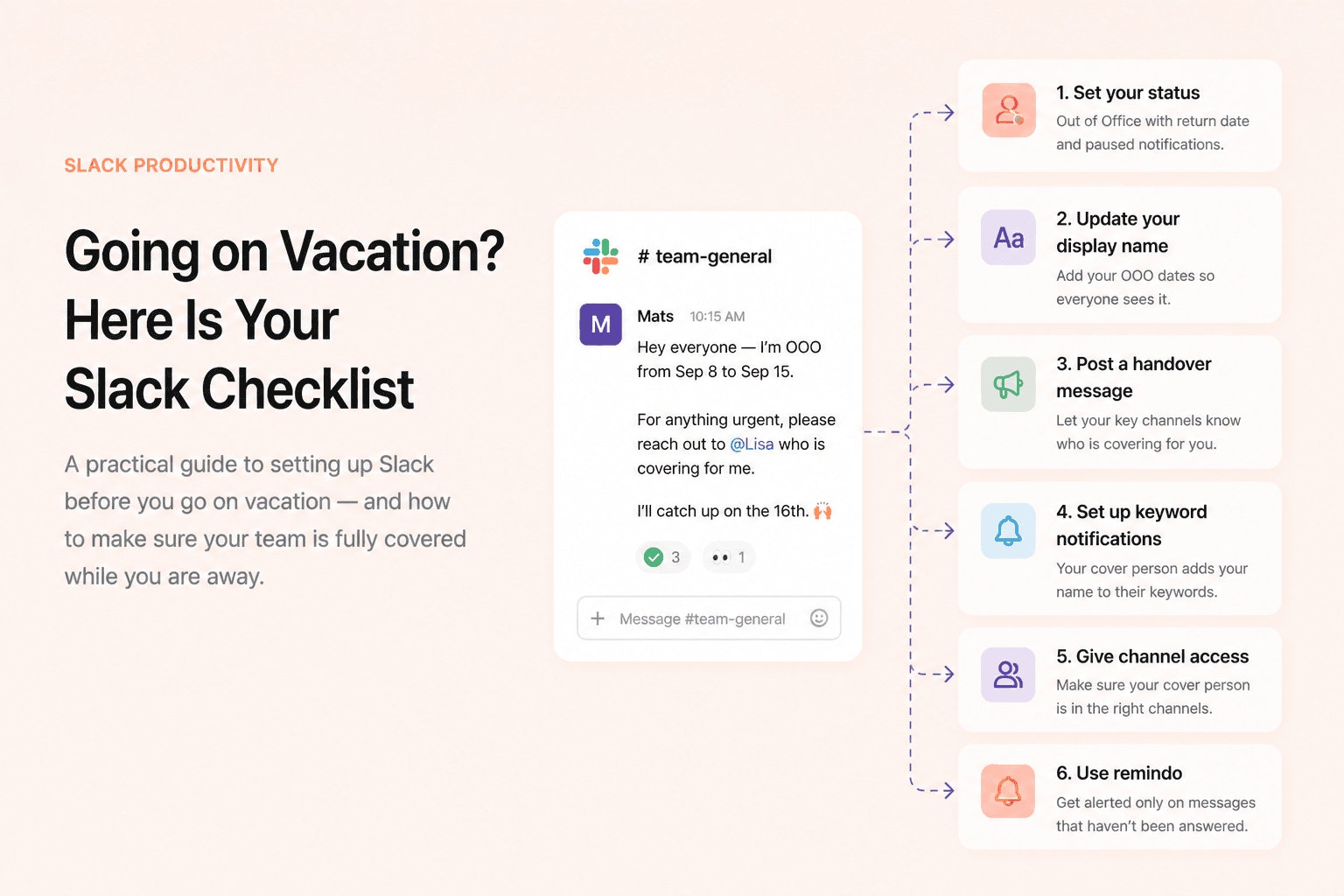
Most people set an out-of-office reply in their email and call it done. Slack gets forgotten — and then messages pile up, questions go unanswered, and whoever is covering for you has no idea what landed in your channels while you were gone.
Five minutes of setup before you leave makes a meaningful difference. Here is the full checklist.
1. Set your status to Out of Office
Click your profile picture in the Slack sidebar, select "Update your status," and choose the Out of Office option. Set a return date so the status clears automatically, and check the "Pause notifications" box so you are not disturbed while you are away.
You can also add an out-of-office message — a short note that appears to anyone who tries to message you, explaining when you are back and who to contact instead.
If your company is on an Enterprise plan and works with external partners via Slack Connect, those partners can see that you are out of office — but only the indicator, not the full message. The message is visible to internal teammates only. If your Enterprise workspace has configured external status visibility, check with your admin whether your status is exposed to connected organizations.
2. Add OOO to your display name
This is a simple trick that makes a big difference. Go to your profile and temporarily update your display name to include your return date — for example "Mats Ramsl OOO until Sep 12." This shows up everywhere your name appears: in channel messages, mentions, search results, and DMs. Anyone who tries to reach you immediately sees that you are away, without having to open your profile or wait for an auto-reply.
Because Slack syncs display names across the workspace, this update reaches all your contacts instantly. Remember to change it back when you return.
3. Write a handover message in your key channels
Do not just disappear. Post a short message in the channels where you are most active, letting people know you are leaving and who is covering for you. Keep it brief and specific.
Hey everyone — I am OOO from September 8 to September 15. For anything urgent, please reach out to @Lisa who is covering for me. I will catch up on everything when I am back on the 16th.
Post this in your team channel, any project channels where you are actively involved, and anywhere else where someone might look for you. It takes two minutes and saves your colleagues a lot of confusion.
4. Set up your cover person to receive your mentions
If someone is covering for you, they need to actually know when you are being talked about. The most reliable way to do this is with keyword notifications. In Slack, go to Preferences → Notifications → My keywords and add your name (for example "Mats" or "@Mats"). Slack will then notify you — or in this case, the person covering for you — every time that keyword appears in any channel they are a member of.
For this to work, your cover person needs to be in the same channels as you. If they are missing from any channel where your name might come up, add them before you leave.
The keyword approach gives your cover person a real-time view of everything being directed at you — without them having to monitor every channel manually.
5. Use remindo to follow unanswered messages
Keyword notifications tell you when someone is mentioned. But they do not tell you whether that message was actually handled. If five people are mentioned in a busy channel and four get responses but one slips through, keyword notifications will not surface that.
This is where remindo adds real value for vacation coverage. With remindo, you can follow a person and get notified only when a message directed at them has not received a reply. Instead of getting a ping for every single mention, your cover person only hears about the things that actually need attention.
This setup works beyond vacation too. Teams that cover each other regularly — across time zones, on-call rotations, or shared accounts — can use remindo to make sure no message falls through the cracks without someone having to babysit every channel.
The quick checklist
- 1.Set your Slack status to Out of Office with a return date and paused notifications.
- 2.Update your display name to include your OOO dates.
- 3.Post a handover message in your key channels with who is covering for you.
- 4.Have your cover person add your name as a keyword in their notification settings.
- 5.Make sure your cover person is in all the channels where your name might come up.
- 6.Set up remindo so your cover person only gets alerted on messages that have not been answered.
None of this takes more than ten minutes. But the difference between a team that handles absences well and one where things fall apart every time someone goes on vacation is almost always this kind of intentional handover — not luck.
